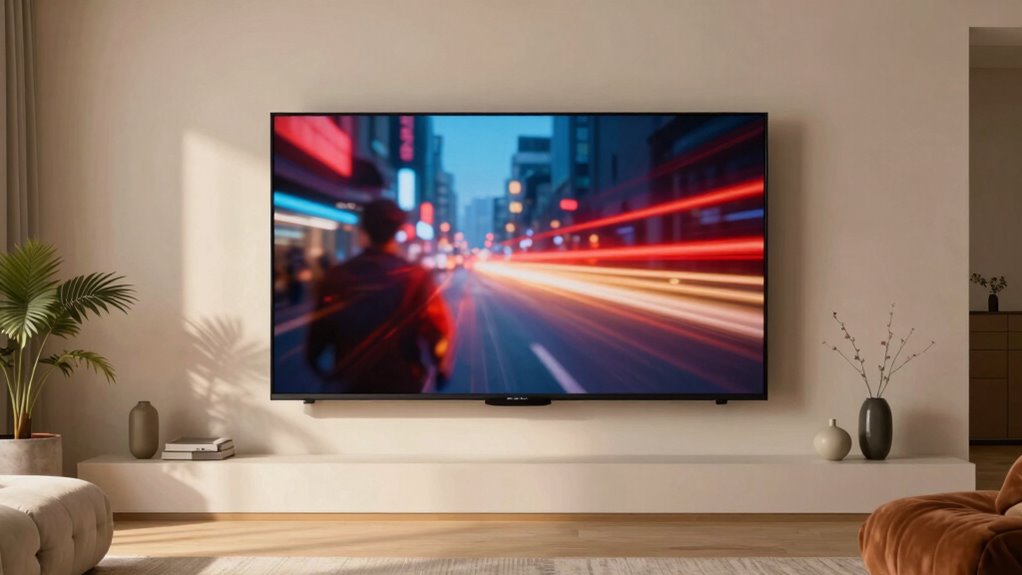

If you want to enjoy movies the way they’re meant to be seen, turn off motion smoothing on your TV. This feature creates a fake, soap-opera-like motion that makes fast scenes look unnatural and distracting. Disabling it restores the authentic cinematic look, preserving the director’s intent and subtle motion effects. If you keep watching with motion smoothing on, you might hate how every movie appears. Keep going to learn how to turn it off and get the best picture.

Get business pricing on office and shipping supplies
- Business-only prices and quantity discounts
- Tax-exempt purchasing
- Multiple users, one account, clear invoices
Key Takeaways
- Turning off motion smoothing restores a natural cinematic look, preventing the “soap-opera” effect that can distract from movies.
- Disabling this feature helps preserve film grain, texture, and intended motion, maintaining the director’s original vision.
- Access your TV’s picture settings to locate and deactivate features like “auto motion plus” or “motion interpolation.”
- Proper calibration after turning off improves picture quality and ensures a more authentic, immersive viewing experience.
- Avoid common setup mistakes by reviewing all picture and sound settings to optimize your movie-watching without artificial smoothing.
TV motion smoothing off remote control
As an affiliate, we earn on qualifying purchases.
As an affiliate, we earn on qualifying purchases.
What Is Motion Smoothing, and Why Do TVs Use It?

Motion smoothing is a feature that TVs use to make fast-moving scenes appear smoother and more fluid. It works by adding extra frames between the originals, reducing motion blur and judder. To get the best picture quality, start with proper calibration tips—adjust settings like backlight, contrast, and motion interpolation to suit your viewing environment. Keep in mind that viewing angles can affect how effective motion smoothing appears; sitting off-center may cause artifacts or reduced clarity. When setting up your TV, test different calibration options to find a balance that minimizes unwanted effects while enhancing motion clarity. Understanding how motion smoothing interacts with your viewing angles helps you optimize your experience, whether you prefer the effect or want to turn it off altogether. Additionally, be aware that content formats and how they are processed can influence the effectiveness of motion smoothing.
How Motion Smoothing Ruins the Cinematic Look of Movies

Motion smoothing can make movies look less like film and more like live video, stripping away the cinematic feel you expect. It creates unnatural motion effects that distract you from the story and visuals. As a result, the immersive quality of movies gets lost, leaving you with a less authentic viewing experience. Additionally, it can interfere with the environmental impact of tissue paper, reminding us that many aspects of our media consumption and daily life can have unintended environmental consequences.
Loss of Cinematic Feel
When motion smoothing is enabled, it often creates a hyper-real, soap-opera-like effect that strips away the authentic cinematic feel viewers expect. This effect, driven by judder reduction, makes motion appear unnaturally smooth, removing the subtle imperfections that give movies their immersive quality. As a result, your viewing experience loses its sense of realism and emotional depth. Specifically:
- The natural motion blur that adds depth and atmosphere is diminished or lost.
- The authentic, cinematic pacing is replaced with an overly smooth, TV-like look.
- The overall aesthetic shifts, making films feel less like movies and more like staged television, undermining the artistry behind filmmaking.
This “soap opera effect” destroys the visual nuances that make movies unique and emotionally engaging.
Unnatural Motion Effects
Enabling motion smoothing introduces unnatural motion effects that can substantially distort the intended look of films. You’ll notice a soap opera effect, where motion appears overly smooth and hyper-realistic, stripping away the film’s original texture and grain. This creates a disconnect, making movies look more like video recordings than cinematic works. The smooth, hyper-fluid motion undermines the film-like authenticity directors aim for, replacing the intended visual style with an artificial, soap opera-like quality. This effect can be distracting and diminish your viewing experience, especially during fast-paced scenes. Moreover, the contrast ratio plays a crucial role in how well the image maintains depth and clarity during motion, further highlighting the importance of turning off motion smoothing. To preserve the filmmaker’s vision and enjoy movies as they were meant to be seen, it’s best to turn off motion smoothing and embrace the natural, authentic motion that gives films their true cinematic feel.
Signs Your TV Has Motion Smoothing Enabled

If your TV looks unnatural or choppy during fast scenes, motion artifacts might be the culprit. You may also notice the screen appears too bright or the response feels delayed when you try to change settings. Recognizing these signs can help you identify if motion smoothing is turned on. Additionally, enabling motion smoothing can sometimes cause the appearance of soap opera effect, making movies look less cinematic.
Unnatural Motion Artifacts
Unnatural motion artifacts are a clear sign that your TV has motion smoothing turned on. When enabled, you’ll notice images that look overly smooth or overly processed, often with a soap-opera effect. Common signs include:
- Choppy or rubbery motion during fast-paced scenes, caused by over-aggressive frame interpolation.
- A loss of natural judder reduction, making film footage appear unnaturally smooth or distorted.
- Excessive smoothing that creates a “fake” look, where motion feels too perfect and lacks cinematic authenticity.
These artifacts occur because the TV is artificially adding frames or smoothing motion, disrupting the original film cadence. Recognizing these signs helps you decide whether to disable motion smoothing for a more authentic viewing experience.
Excessive Screen Brightness
When motion smoothing is activated, it can cause your TV’s screen to appear unnaturally bright or overly intense, especially during fast-moving scenes. This excessive brightness can lead to screen glare, making viewing uncomfortable and distracting. You might notice that scenes look overly vivid or washed out, with details lost in the glare. To check, look for sudden increases in brightness during action sequences. Adjusting brightness settings or turning off motion smoothing often reduces this problem. Here’s a quick comparison:
| Before Adjustment | After Adjustment |
|---|---|
| Screen glare intensifies | Reduced glare, softer image |
| Brightness feels overwhelming | Comfortable viewing |
| Colors appear overly bright | More natural tones |
| Fast scenes look harsh | Smoother, balanced image |
| Eye strain increases | Easier on your eyes |
Disabling motion smoothing helps regain natural brightness and reduces screen glare. Additionally, understanding motion interpolation can help you better identify and manage this feature.
Delayed Response Time
A noticeable delay between your TV’s input and on-screen action often signals that motion smoothing is active. This delayed response time occurs because frame interpolation creates artificial frames, making motion appear smoother but adding unwanted lag. You’ll notice it when fast-paced scenes feel sluggish, or there’s a lag between your remote commands and the picture. To diagnose this, look for these signs:
- Unusual delay in action, especially during rapid movements.
- Excessive motion blur that makes objects seem ghostly or smeared.
- Mismatch between your input and on-screen response, causing a lag.
- Recognizing that Victorian Steampunk Roleplay emphasizes authentic experiences can help you understand how real-time interaction is crucial, and motion smoothing undermines that authenticity.
These issues stem from the TV’s attempt to improve motion clarity through frame interpolation, but it often results in a delayed response time, compromising real-time viewing. Turning off motion smoothing restores natural motion and reduces lag.
How to Turn Off Motion Smoothing on Your TV

Wondering how to turn off motion smoothing on your TV? It’s straightforward once you know where to look. Start by accessing your TV’s settings menu, then navigate to picture or display options. Look for settings labeled “motion” or “video processing.” Here, you’ll find options like “motion smoothing,” “auto motion plus,” or “frame interpolation.” Turn this feature off to reduce the artificial smoothing effect. Adjusting the refresh rate settings may also help, as higher refresh rates can influence motion clarity. Disabling frame interpolation prevents the TV from creating extra frames, which often causes the soap opera effect. Keep in mind that menus vary by brand and model, so consult your user manual if needed. Turning off motion smoothing improves picture naturalness, especially during fast-moving scenes.
Why Disabling Motion Smoothing Improves Your Viewing Experience
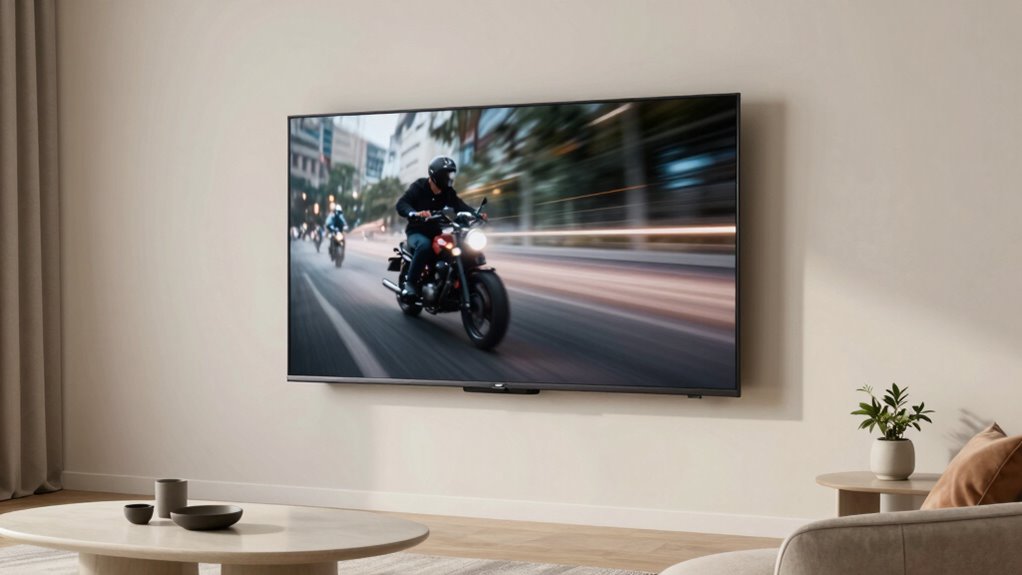
Turning off motion smoothing can considerably enhance your viewing experience by restoring the natural look of motion on your TV. When you disable it, your movies and shows appear more authentic, like film restoration processes aim to preserve the original quality. This helps prevent the soap-opera effect, which can distort the intended color grading and visual tone. Without artificial motion interpolation, you notice: a more authentic cinematic experience****, as it aligns with the filmmaker’s original vision. More accurate movement that aligns with the director’s original vision. Better preservation of film grain and texture, enhancing realism. Improved color grading, allowing you to appreciate subtle hues and contrasts as intended. Disabling motion smoothing brings your TV closer to the authentic cinematic experience, making every scene feel more immersive and true to the filmmaker’s artistry.
Common Mistakes When Turning Off Motion Smoothing
Many people mistakenly assume that simply turning off motion smoothing will instantly improve their viewing experience, but overlooking common mistakes can lead to frustration or subpar results. One mistake is neglecting proper sound calibration, which can make movies feel unbalanced even with better motion handling. Another is ignoring screen calibration; an improperly set picture can appear dull or overly sharp, undermining the benefits of disabling motion smoothing. Additionally, some forget to adjust other picture settings afterward, like contrast or sharpness, which should complement the change. Ultimately, rushing the process without researching your TV model’s specific options can result in incomplete adjustments. Proper calibration and understanding of your TV’s support and boundaries can significantly enhance your viewing experience. Here’s a quick guide to avoid these pitfalls:
| Mistake | Impact | Solution |
|---|---|---|
| Ignoring sound calibration | Poor audio experience | Calibrate sound settings |
| Skipping screen calibration | Unbalanced picture | Use calibration tools |
| Not adjusting contrast/sharpness | Image looks off | Fine-tune picture settings |
| Rushing setup | Incomplete improvement | Take your time |
| Overlooking other settings | Inconsistent viewing | Review all picture options |
Does Turning Off Motion Smoothing Affect Other Picture Settings?
Disabling motion smoothing primarily affects how your TV processes motion, but it can also influence other picture settings. When you turn off motion smoothing, you might notice changes in picture calibration, as your TV’s default processing adjusts to the absence of added frames. This can lead to:
Turning off motion smoothing may subtly alter picture calibration and processing settings.
- Slight shifts in contrast or brightness, requiring re-calibration for ideal picture quality.
- Changes in color accuracy, which may need manual adjustments for true-to-life hues.
- A potential impact on audio settings, since some TVs synchronize audio enhancements with visual processing features.
- Understanding car repair concepts like calibration and manual adjustments can help you better fine-tune your TV settings for optimal viewing.
Adjusting one setting often means revisiting others to maintain your preferred viewing experience. Keep in mind, these changes are minor but can enhance overall picture fidelity when properly calibrated.
Tips for Maintaining a Cinematic Look in All Your Movies

To keep your movies looking cinematic regardless of your TV’s settings, focus on optimizing picture quality to match professional film production. Use filmmaking techniques like adjusting contrast, sharpness, and black levels to create a richer, more authentic image. Pay attention to color grading, as it sets the mood and tone of each scene, making your movies feel more polished and intentional. Avoid overly bright or overly saturated displays that detract from the cinematic experience. If your TV allows, set it to a cinema or film mode, or manually tweak settings for a more natural look. By refining these elements, you guarantee that every movie maintains the depth, color accuracy, and emotional impact that define a true cinematic experience. Additionally, consider digital calibration tools or professional calibration services to ensure your display is optimized for a truly cinematic presentation.
Frequently Asked Questions
Can I Disable Motion Smoothing Temporarily for Specific Content?
Yes, you can disable motion smoothing temporarily for specific content. Use your remote control to access your TV’s picture calibration settings or picture mode menu. Many TVs allow you to set different picture settings for different inputs or sources, so you can turn off motion smoothing for certain shows or movies without affecting your overall picture calibration. Just remember to toggle it back on when you want the smoothing effect again.
Does Motion Smoothing Impact Gaming Performance on TVS?
Turning on motion smoothing can turn your gaming experience into a nightmare of lag and motion blur, making every move feel sluggish. It definitely impacts gaming performance by increasing gaming lag and reducing image clarity during fast-paced action. Disabling motion smoothing helps your TV respond faster, giving you a competitive edge and clear visuals. So, for smoother gameplay, always turn off motion smoothing and enjoy crisp, lag-free gaming.
Are There Alternative Settings to Improve Motion Clarity Without Disabling?
Yes, you can improve motion clarity without turning off motion smoothing. Try adjusting frame interpolation settings or enabling motion enhancement features on your TV. These options help smooth out fast movements and reduce judder, giving you clearer motion without the drawbacks of full motion smoothing. Experiment with the settings to find a balance that enhances your viewing experience, especially for fast-paced sports or action movies.
Is Motion Smoothing Available on All TV Brands and Models?
Don’t count on motion smoothing being available on all TV brands and models. While many modern TVs include this feature, some budget-friendly or older models might not offer it. To get the best picture enhancement, you’ll want to explore your TV’s calibration settings, as some brands let you customize motion clarity without enabling smoothing. Keep in mind, a little tweaking can go a long way to perfect your viewing experience.
How Often Should I Revisit My Picture Settings After Turning off Motion Smoothing?
You should revisit your picture settings and calibration frequency every few months, especially after significant firmware updates or changes in your viewing environment. Regular picture adjustments help maintain ideal image quality, ensuring colors and contrast stay accurate. Turning off motion smoothing might alter how you perceive motion, so it’s worth recalibrating your display to suit your preferences. Keep an eye on your picture quality and tweak settings as needed for the best viewing experience.
Conclusion
Don’t let dull, distorted footage destroy your movie nights. By disabling motion smoothing, you preserve the pristine, cinematic quality you crave. It’s simple to switch off, so don’t settle for stuttered scenes or soap opera effects. Take control, turn it off, and enjoy authentic, immersive images that truly impress. Mastering this small switch makes a massive difference, ensuring every film feels fresh, flickering, and fabulous—free from fake motion and false finishes.
Fall Picks
fall essentials
As an affiliate, we earn on qualifying purchases.