

This checklist is for small business owners setting up a practical office for everyday work. It covers a chair, desk converter, keyboard and mouse, dock, scanner, and file cabinet, with a specific pick listed for each slot. Start with the essentials that support the way you work most often.

Get business pricing on office and shipping supplies
- Business-only prices and quantity discounts
- Tax-exempt purchasing
- Multiple users, one account, clear invoices
The sections follow common office needs, from seating and desk setup to connecting devices, handling documents, and storing files. Each pick has a short buying guide and concrete points to check against your workspace. Fit and compatibility can matter as much as the product category.
Use the checklist to compare the listed pick with your room, equipment, and routines before buying. Check dimensions, connection requirements, and the tasks you expect the item to handle; confirm product details with the manufacturer or seller. Choose for your actual workflow and add items in stages if that makes setup easier.
Ergonomic Office Chair
A chair is a core part of a desk setup because it needs to suit the person using it and the space around the desk. The listed pick is the ELABEST X100 Ergonomic Mesh Office Chair with Footrest. Before choosing it, compare its dimensions and adjustment options with the user’s body, desk height, and available floor area. Personal fit comes first; a feature list alone cannot tell you whether a chair will feel right through a workday.
A common buying mistake is assuming that a chair labeled ergonomic will automatically fit every user. Check the seat height range, seat depth, back support adjustments, armrest position, and whether the footrest suits your posture and desk arrangement. Also consider the chair’s footprint, including space needed to recline or move. Verify the measurements against your own setup, and review the return terms in case the fit is not right.
For a shared office, consider whether the adjustments can accommodate different users without a complicated reset. Confirm the floor surface is suitable for the chair’s base and wheels, and check that the chair can pass through doorways on delivery. Test the fit in context with your desk and monitor position.
What to look for:
- Seat height and depth ranges that fit the primary user
- Adjustable back support and armrests
- Footrest position relative to desk and seated posture
- Chair footprint and clearance for movement or recline
- Base and wheel suitability for the office floor
ELABEST X100 Ergonomic Mesh Office Chair with Footrest

The ELABEST X100 is an ergonomic mesh office chair with adjustable lumbar support, a 3D headrest, 5D flip-up armrests, and an extendable footrest. Its reclining mechanism, breathable mesh, and adjustable seat height are designed for work or gaming, and it supports up to 300 pounds.
Pros:
- Multiple adjustable features, including lumbar support, headrest, and armrests
- Extendable footrest and reclining mechanism support relaxation
- Breathable mesh upholstery
- 300-pound capacity and BIFMA-certified construction
Cons:
- The extensive adjustability may take time to configure
- Seat height customization outside the stated range requires contacting the manufacturer
Best for: A desk worker who wants an adjustable mesh chair with a footrest
Not ideal for: A workspace where the chair’s footprint or adjustments cannot be accommodated
Bottom line: Check the chair’s measurements and adjustment range against the user and desk before choosing the ELABEST X100.
Standing Desk Converter
A standing desk converter can be useful when you want to change your working position while keeping your existing desk. The listed pick is the Mount-It! Electric Standing Desk Converter with Dual Monitor Arms. The key first step is confirming that the converter fits the desk and supports the equipment you plan to place on it. Measure the desk area and compare it with the product’s dimensions and stated capacity before purchase.
A common mistake is focusing on the lifting mechanism while overlooking monitor placement, keyboard space, or the desk’s stability. Check the converter’s height range and available work surface, and confirm how the dual monitor arms attach and what screens they support. Consider the desk’s depth and edge construction as well as the location of outlets and cables. Check every connection point against your actual desk and monitor setup.
For fit, map out where the keyboard, mouse, and monitors will sit at both working heights. Make sure the screen position can be adjusted to suit the user, and leave enough clearance for the converter to move without hitting shelves, lamps, or other equipment. Plan the full movement path before assembling the setup.
What to look for:
- Converter width and depth compared with the desk
- Stated equipment capacity and height range
- Monitor arm mounting and screen compatibility
- Space for keyboard and mouse at the desired height
- Clearance for movement, cables, and nearby objects
Mount-It! Electric Standing Desk Converter with Dual Monitor Arms

This motorized desk converter adjusts from 6.3 to 19.3 inches and includes adjustable arms for two monitors up to 32 inches each. Its 35.4-by-23-inch work surface features a keyboard tray, device channel, and USB charging station, with a black finish and alloy steel frame.
Pros:
- Motorized height adjustment
- Supports two monitors with adjustable arms
- Spacious work surface with keyboard tray
- Integrated USB charging and device channel
Cons:
- Weighs 59 pounds
- Requires assembly
Best for: Someone keeping an existing desk and using two monitors
Not ideal for: A desk that cannot accommodate the converter or its monitor arms
Bottom line: Confirm the desk dimensions, capacity, and monitor mounting compatibility before selecting this converter.
Wireless Keyboard and Mouse
A keyboard and mouse are frequent points of contact in an office, so their layout and connection method should suit the user and computer. The listed pick is the Logitech MK335 Full Size Wireless Keyboard and Mouse Combo – Black/Sil. Before choosing it, check that its connection method works with the devices in the office and that the full-size keyboard fits the available desk space. Confirm device compatibility before ordering.
A common buying mistake is assuming a wireless combo will connect to every computer or that a full-size keyboard will fit a compact desk. Review the product’s connection requirements, operating system compatibility, and any receiver or port needs. Check the keyboard’s dimensions, key layout, and number pad placement, along with the mouse’s shape and size for the primary user. Match the layout to the workspace and the tasks performed there.
For shared desks, consider whether multiple people can use the keyboard and mouse comfortably, and whether the mouse suits either hand if users differ. Check what is included in the box and how the set is powered, then plan where any receiver will plug in. Keep the connection path simple and ensure the computer has the required ports.
What to look for:
- Supported operating systems and connection method
- Receiver or port requirements for the office computer
- Keyboard dimensions and full-size layout fit
- Mouse shape and suitability for the primary user
- Included components and power requirements
Logitech MK335 Full Size Wireless Keyboard and Mouse Combo – Black/Silver

The Logitech MK335 combo features a sleek, full-size wireless keyboard with quiet keys and an ambidextrous mouse, offering a comfortable and reliable wireless experience. It includes hotkeys for multimedia control and boasts long battery life, making it suitable for home or office use.
Pros:
- Quiet, comfortable typing experience
- Long battery life for both keyboard and mouse
- Reliable wireless connection with fast data transmission
- Multimedia hotkeys for easy control
Cons:
- Battery life varies with use and conditions
- Requires USB receiver for connection
Best for: A desk user who wants a full-size keyboard and mouse together
Not ideal for: A compact desk or device setup that lacks the required connection support
Bottom line: Check the connection requirements and desk fit before choosing the Logitech MK335 combo.
USB-C Docking Station
A docking station can help connect a computer to peripherals and displays from one place, but compatibility depends on the computer and the devices attached. The listed pick is the Anker Prime DL7400 14-in-1 DisplayLink Docking Station. Start by checking the computer’s USB-C capabilities, operating system support, and any DisplayLink software requirements. Confirm host compatibility before planning the rest of the setup.
A common buying mistake is treating every USB-C port as interchangeable. Verify that the computer supports the dock’s required connection features, and check display support, resolution, and refresh requirements against the monitors. Review the full port list to ensure it includes the connections needed for network, storage, audio, and other peripherals. Match each device to a port and account for any adapters or cables the setup needs.
Think through power delivery as well: compare the dock’s stated charging support with the computer’s needs and confirm whether a power supply is included. Consider where the dock will sit, whether connected cables can reach, and whether the computer’s operating system permits the necessary software. Verify the complete setup with the device and monitor documentation.
What to look for:
- Computer compatibility, operating system, and DisplayLink requirements
- Display count and supported resolution for each monitor
- Ports needed for peripherals and network connections
- Power delivery requirements and included power supply
- Cable reach and placement relative to the computer
Anker Prime DL7400 14-in-1 DisplayLink Docking Station

This docking station connects up to three 4K displays and offers USB-C, USB-A, HDMI, DisplayPort, Ethernet, audio, and SD/TF card ports. It supports laptop charging up to 140W, with a built-in display and fan for monitoring and cooling.
Pros:
- Supports up to three 4K external displays
- Provides up to 140W laptop charging
- Broad selection of ports, including 2.5Gbps Ethernet
- Built-in smart display and fan cooling
Cons:
- Requires a DisplayLink driver for triple-display use
- DRM-protected streaming may show a black screen
- Front USB-C ports do not support video output
Best for: An office computer setup that needs multiple peripherals and displays
Not ideal for: A computer whose ports or software do not support the dock’s requirements
Bottom line: Check the computer, displays, ports, and power needs against the dock specifications before buying.
Document Scanner
A desktop document scanner can support an office routine that involves capturing paper records and keeping digital copies. The listed pick is the Epson Workforce ES-580W Wireless Color Duplex Desktop Document Scanner. Before choosing it, consider the kinds of documents the business handles, how often they are scanned, and whether the scanner’s connection options fit the office workflow. Start with document volume and the way files need to reach staff.
A common mistake is choosing a scanner without checking the paper sizes and types it can handle or how it connects to computers and networks. Review supported media, duplex scanning needs, wireless setup requirements, and compatibility with the computers and software in use. Consider the physical footprint and feed capacity in relation to the space and typical batches. Check the workflow details rather than relying on the product category alone.
For fit, measure the counter or desk and leave room to load documents and access controls. Confirm that the scanner can send files to the destinations your team uses, and check whether any software or setup steps are needed. If several people will use it, consider how they will share access and where scanned files will be stored. Plan the complete paper-to-file path before setting it up.
What to look for:
- Supported paper sizes and document types
- Duplex needs and expected batch volume
- Wireless and other connection options
- Compatibility with office computers and scanning software
- Space for the scanner, document loading, and access
Epson Workforce ES-580W Wireless Color Duplex Desktop Document Scanner

The Epson Workforce ES-580W is a high-speed, wireless color scanner with a 4.3-inch touchscreen, capable of handling up to 100 sheets with its auto document feeder. It offers versatile connectivity options, including direct saving to USB, email, and cloud services, and supports OCR for creating searchable PDFs and editable files.
Pros:
- Fast scanning speed of 35 pages per minute
- Wireless connectivity with cloud and USB options
- Supports OCR for searchable and editable files
- Handles large volumes with 100-sheet ADF
Cons:
- Requires setup for wireless connection
- May be complex for first-time users
- Higher price point for advanced features
Best for: A small office that regularly scans color and two-sided documents
Not ideal for: A workflow with little paper scanning or incompatible software needs
Bottom line: Compare document types, scan volume, connections, and software compatibility with the office routine.
Locking File Cabinet
A file cabinet gives paper records a defined storage place, and a locking model can be considered when access control matters to the office. The listed pick is the FireKing Turtle Vertical 2 Drawer Fire Rated File Cabinet, Arctic Whit. Before selecting it, check its external dimensions, drawer configuration, and the types of records the business expects to store. Measure the destination space and confirm the cabinet suits the filing routine.
A common buying mistake is assuming that a cabinet will accept every folder or fit under a desk without checking dimensions. Review drawer size and supported filing orientation, then compare the cabinet’s exterior measurements with doorways, aisles, and the intended location. Confirm the lock arrangement and how keys or access will be managed. Check both storage and access needs before choosing.
The product name identifies it as fire rated, but confirm the manufacturer’s documentation for the rating, conditions, and intended use that matter for your records. Consider the cabinet’s weight, delivery path, floor location, and whether drawers can open fully without obstruction. Verify the rating details and plan placement before purchase. Keep a separate digital backup process if the business relies on important records.
What to look for:
- External dimensions and clearance for drawers to open
- Drawer size and supported filing orientation
- Lock type and practical key or access management
- Manufacturer documentation for fire rating and intended use
- Delivery route, placement, and floor suitability
FireKing Turtle Vertical 2 Drawer Fire Rated File Cabinet, Arctic White
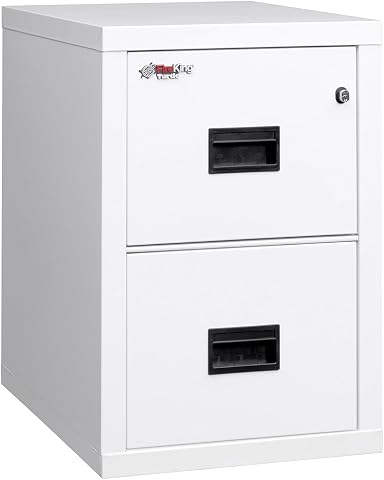
This fire-rated filing cabinet provides one-hour fire protection, keeping documents safe in extreme conditions. Made of high-quality steel, it features two easy-slide drawers for legal and letter-sized files, a secure lock system, and a sleek, scratch-resistant finish, ideal for small offices or home use.
Pros:
- Provides fire protection for up to 1 hour
- Secure lock system for anti-theft protection
- Sleek, scratch-resistant finish
Cons:
- Heavy to move (251 pounds)
- Limited to two drawers
- Made in the USA, which may affect availability
Best for: An office that needs organized storage for paper files
Not ideal for: A space that cannot fit the cabinet or allow full drawer access
Bottom line: Verify the filing fit, lock details, dimensions, and manufacturer’s fire rating documentation.
Build the office in a practical order: first choose the chair and desk arrangement that fit the user and room, then add the keyboard and mouse. Next, select a dock if the computer setup needs one, followed by a scanner or cabinet based on the office’s document handling needs. Prioritize daily-use needs and confirm each item works with the equipment already in place.
You do not need to complete every part of the checklist at once. Measure the space, review compatibility details, and add equipment as the work requires it. A setup that fits the room and routine can make everyday tasks easier to organize. Use the checklist at your own pace and adjust as the business grows.