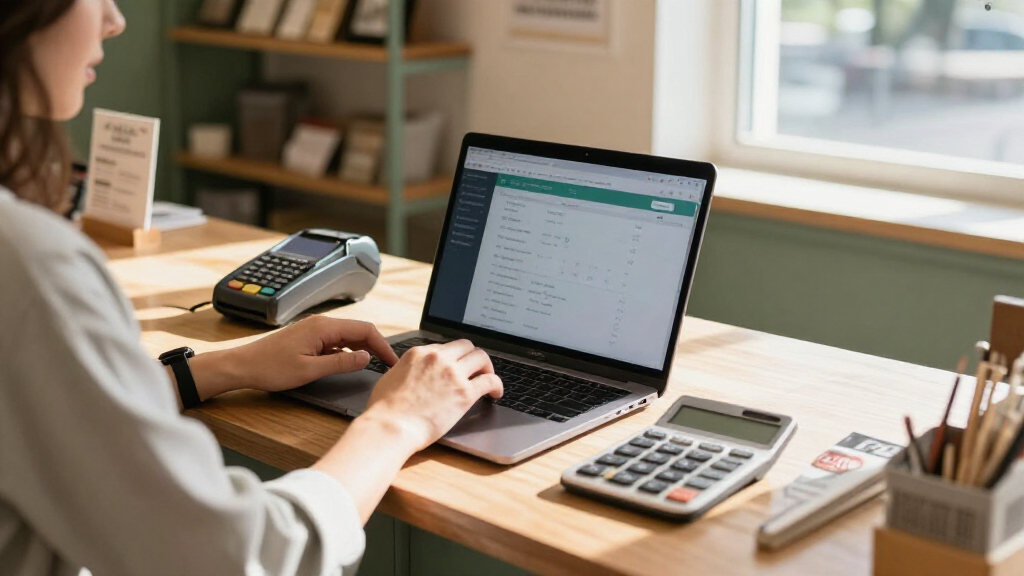

This checklist is for small business owners who want a more orderly way to handle receipts, invoices, records, and cash. It can help you think through the tools that support routine bookkeeping, whether you manage the books yourself or work with a bookkeeper.

Get business pricing on office and shipping supplies
- Business-only prices and quantity discounts
- Tax-exempt purchasing
- Multiple users, one account, clear invoices
The sections follow common bookkeeping tasks: capturing receipts, choosing accounting software, preparing invoices, organizing business contacts, handling cash, and disposing of sensitive paperwork. Each product pick is presented as a possible fit for its named slot, while the software section offers general advice without a product recommendation.
Use the checklist to compare each tool with your workflow before buying. Check the product’s current specifications and compatibility details, then consider your document sizes, connection needs, storage habits, and expected volume. A tool is useful when it fits the way your business actually records and retrieves information.
Receipt Scanner
A receipt scanner can make it easier to turn paper records into files you can organize and share. The ScanSnap iX1300 is listed as a wireless or USB, double-sided color document scanner, so it may suit a business that handles both sides of receipts or other paperwork. Keeping scans connected to a consistent filing routine matters as much as capturing the image: agree on naming conventions and where completed files belong.
Before choosing a scanner, check that its supported connection options work with the devices and operating systems you use, and confirm how documents are loaded and handled. A common mistake is assuming that wireless connectivity means the scanner will work with every phone, computer, or bookkeeping setup. Verify the manufacturer’s compatibility details and any included software requirements. Also consider the range of paper sizes and thicknesses you routinely scan, and whether you need color for annotations or document legibility.
Think about retrieval and backup before scanning a growing stack. Decide who reviews scans, when originals can be filed, and how digital records are backed up. The scanner can support a process, but it does not replace a clear retention policy or accurate bookkeeping entries.
What to look for:
- Confirm wireless and USB compatibility with your devices.
- Check supported document sizes and paper handling.
- Verify whether double-sided scanning suits your records.
- Review included software and file format options.
- Plan a consistent naming and backup routine.
ScanSnap iX1300 Wireless or USB Double-Sided Color Document Scanner, Black

The ScanSnap iX1300 is a compact, space-saving document scanner that handles various document types, including photos, receipts, and plastic cards. It offers fast duplex scanning with automatic features and connects via USB or Wi-Fi to multiple devices and cloud services, making document organization effortless.
Pros:
- Compact and space-saving design
- Fast duplex scanning with automatic adjustments
- Wireless connectivity for versatile use
- Supports multiple device types and cloud services
Cons:
- Requires setup of software and drivers
- Limited to small space environments
Best for: Businesses scanning receipts and paperwork regularly
Not ideal for: Owners who rarely scan or need a different workflow
Bottom line: Check device compatibility and document handling before adding the ScanSnap iX1300 to your receipt routine.
Accounting Software
Accounting software is the recordkeeping hub that can connect transactions, invoices, expenses, and reports. There is no product pick for this slot, so start by mapping what your business needs to record and who needs access. A solo owner with a simple workflow may need different features from a business with employees, inventory, or an outside bookkeeper. List the tasks you perform each week and identify where errors or duplicate entry happen.
A frequent buying mistake is selecting software based on a long feature list without checking whether it works with your bank feeds, payment services, payroll process, or existing records. Confirm supported integrations and data export options before moving information. Ask how permissions are managed if multiple people will use the system, and whether it can support the reports your tax preparer or bookkeeper requests. Compatibility and migration details should be checked with the software provider.
Plan for consistent categorization from the start. Establish who reconciles accounts, how receipts are attached to transactions, and how often records are reviewed. If you switch systems, retain access to historical data and document the transition. The right choice is the one your team can use accurately and maintain as the business changes.
What to look for:
- List required bookkeeping tasks and reports first.
- Confirm bank, payment, payroll, and other integrations.
- Check user permissions and collaboration options.
- Review data export, backup, and migration processes.
- Choose a review and reconciliation schedule.
Invoice Printer
A printer can support invoice and fulfillment routines, but the listed pick is a 4×6 thermal label printer described as Bluetooth. That description points to shipping labels, so confirm it matches the documents you intend to print. If your goal is paper invoices, check the printer’s supported media and output format carefully; a label printer may not meet that need. If you also ship orders, it may fit a separate labeling task.
Check whether the printer works with your computer, phone, shipping platform, and label software. Bluetooth pairing can vary by device and application, so verify the supported operating systems and setup instructions. Confirm the label dimensions your workflow requires and whether the printer supports the roll or fanfold media you plan to use. A common mistake is treating a connection type or a 4×6 format as universal compatibility.
Keep invoices themselves in a reliable digital record even if you print a copy or a related shipping label. Decide where invoice files are saved, how they are linked to payments, and who checks that customer and transaction details are correct. Separate the invoicing process from shipping-label printing unless the product’s verified capabilities support both tasks.
What to look for:
- Confirm whether you need invoices, shipping labels, or both.
- Verify Bluetooth compatibility with your devices and apps.
- Check supported label dimensions and media types.
- Review setup requirements for the shipping or label software.
- Keep digital invoice records linked to payments.
Thermal Shipping Label Printer 4×6 Bluetooth Label Maker for Small Business

This compact thermal label printer uses direct thermal technology to produce crisp, black-and-white 4×6 labels at speeds up to 150mm/s, ideal for high-volume small business shipping. It features Bluetooth and USB connectivity, compatibility with major shipping platforms, and supports customizable templates via a user-friendly app.
Pros:
- High-quality thermal printing with sharp resolution
- Wireless Bluetooth and USB connectivity for flexibility
- Compatible with major shipping platforms like Amazon, USPS, UPS, FedEx, DHL
- Includes everything needed to start printing immediately
Cons:
- Prints in black and white only
- Limited to monochrome output
- Maximum print speed may be insufficient for extremely high-volume operations
Best for: Businesses that need compatible 4×6 shipping labels
Not ideal for: Anyone expecting standard paper invoice printing without confirmation
Bottom line: Verify the printer’s media and software support before treating it as an invoice printer.
Checkbook Organizer
Organizing business contacts and records can make routine follow-up easier, and the listed 300-card binder is described as a business card holder book organizer with a PU leather cover. It is a physical organizer for business cards, so consider whether that is the information you want close at hand. It may support a simple contact reference system, but it does not itself track checks, expenses, or bookkeeping transactions.
Check how the cards are stored and whether the binder’s layout suits the card sizes and quantity you expect to keep. A common mistake is choosing an organizer that has capacity on paper but is awkward to update or search in daily use. Think about how you will sort contacts, label sections, and remove outdated entries. If your bookkeeping process depends on linking contacts to digital customer records, decide how you will keep the binder and digital files in sync.
Use the organizer alongside a clear record system, not as the sole source of accounting data. Avoid writing sensitive financial details on business cards or storing confidential notes where they can be seen casually. Review the contents periodically so the book stays useful rather than becoming a second, outdated contact list.
What to look for:
- Confirm the binder accommodates your business card sizes.
- Check the stated card capacity against your needs.
- Choose a sorting approach that is easy to maintain.
- Keep contact information consistent with digital records.
- Avoid storing sensitive financial details with cards.
Business Card Holder Book Organizer, 300-Card PU Leather Binder, Black

This portable business card organizer features a durable PU leather cover and holds up to 300 cards with transparent, easy-to-view sleeves. It is designed for convenient organization and quick access, making it ideal for networking, conferences, and professional use.
Pros:
- High-capacity holder with 300 card slots
- Durable PU leather cover with a professional look
- Transparent PVC sleeves for easy viewing
- Compact and portable design
Cons:
- Limited to standard-sized cards, may not fit larger cards
- Only one compartment, less flexible for categorization
- No additional features like RFID blocking
Best for: Owners who prefer keeping business cards in a binder
Not ideal for: Businesses needing transaction or check tracking in the organizer
Bottom line: Use the binder for contact organization and maintain financial records separately.
Cash Box
A cash box can provide a designated place for cash handling, and the listed Geelin 13-inch drawer is described as having a lockable cover and removable tray. Before buying, map how cash moves through your business: who can access it, where it is stored, and how receipts and counts are recorded. A physical drawer supports storage, but clear procedures help connect cash activity to the books.
Confirm the box’s dimensions fit the counter or storage area where you plan to use it. Check the product details for the tray layout, lock arrangement, and any included keys or accessories rather than assuming a particular configuration. A common mistake is focusing on capacity without considering how the drawer will be opened, secured, and reconciled during a shift. If it will be used alongside a point-of-sale system, verify whether it is standalone or designed to connect to that system.
Set a routine for opening and closing counts, recording cash received, and documenting deposits. Limit access to authorized staff and reconcile the drawer regularly. The box can help keep cash together, but it does not replace a written cash-handling process or accurate entries in your accounting records.
What to look for:
- Measure the intended counter or storage space.
- Confirm tray layout and removable tray details.
- Check the lock and key information provided.
- Verify whether the drawer works with your point-of-sale setup.
- Create opening, closing, and reconciliation procedures.
Geelin 13 Inch Cash Register Drawer with Lockable Cover & Removable Tray

The Geelin cash register drawer features a removable tray and lockable front cover for secure cash handling, plus an easy‑access front slot for quick transactions. It includes four bill slots, five coin compartments, and a smooth ball‑bearing roller system, and connects via a standard RJ11 interface compatible with most POS systems.
Pros:
- Removable cash tray with lockable cover for secure storage
- Front‑slot design allows quick cash insertion without opening the drawer
- Smooth ball‑bearing rollers provide easy opening and closing
- Compatible with most POS systems via RJ11 interface
Cons:
- Limited coin compartment size may not accommodate larger denominations
Best for: Businesses that handle cash at a fixed station
Not ideal for: Teams requiring confirmed point-of-sale integration without checking details
Bottom line: Confirm fit and access details, then pair the drawer with regular cash counts.
Document Shredder
A shredder can help businesses dispose of paper records when they are no longer needed under the applicable retention process. The listed 4005 cross-cut shredder is described as a commercial office paper shredder with an automatic oiler. Review the manufacturer’s specifications to confirm the materials it accepts and the operating requirements for your office. Plan how staff will identify records eligible for disposal before paperwork reaches the shredder.
Do not assume that every paper type, fastener, or media item can be shredded just because the product is described as commercial. Check the supported materials, sheet capacity, run time, and maintenance instructions. A common mistake is buying for the busiest day without considering where the machine will sit or how it will be emptied and maintained. If records include information subject to retention rules, consult your business’s established policy or adviser before disposing of them.
Make shredding part of a controlled records process: separate records to retain from those cleared for disposal, restrict access to sensitive paperwork, and follow the oiler and maintenance directions. Shredding is only one step in handling confidential records; the underlying retention schedule and bookkeeping archive still need to be maintained.
What to look for:
- Verify supported paper types and other materials.
- Check sheet capacity and operating-cycle guidance.
- Review placement, bin access, and emptying needs.
- Follow automatic oiler and maintenance instructions.
- Use a retention process before disposing of records.
4005 Cross Cut Commercial Office Paper Shredder with Automatic Oiler, Continuous

This heavy-duty cross-cut shredder is designed for commercial use, handling 37-39 sheets at a time with a large 44-gallon bin. It features automatic oiling, jam prevention, and continuous operation, making it suitable for offices with 20-25 users.
Pros:
- High capacity shredder suitable for large office environments
- Automatic oiler and jam prevention features enhance usability
- Continuous operation allows for efficient shredding
Cons:
- Very heavy and bulky, may require sturdy setup space
- Requires 20AMP power outlet, limiting placement options
- No price information available
Best for: Offices that regularly dispose of eligible paper records
Not ideal for: Businesses that have not established a records retention process
Bottom line: Confirm operating specifications and retention procedures before using the shredder for business records.
Set your buying order around bookkeeping priorities: first choose a recordkeeping process and software approach, then address the tasks that create the most friction, such as receipt capture or shipping labels. Add contact organization, cash storage, and shredding tools when they fit a defined routine. Check compatibility, dimensions, and operating details for each product before purchase.
You do not need to build the entire system at once. Start with consistent records, clear responsibilities, and a regular review habit, then add tools as your business needs them. A practical checklist and a process you can maintain will help keep bookkeeping work manageable.